Manually Execute a Scheduled Job
Typically, Scheduled Jobs are designed to run based on a pre-defined schedule (see Edit the Execution Schedule for a Scheduled Job for more information). However, you can also manually execute a Scheduled Job on demand.
Note: You can't manually execute a Scheduled Job if it was configured to run only once, and it has already run.
To manually execute a Scheduled Job:
-
Select Admin from the top navigation bar, then select Jobs > Scheduled Jobs from the side navigation menu. The Scheduled Jobs screen is displayed. By default, List View is selected.
-
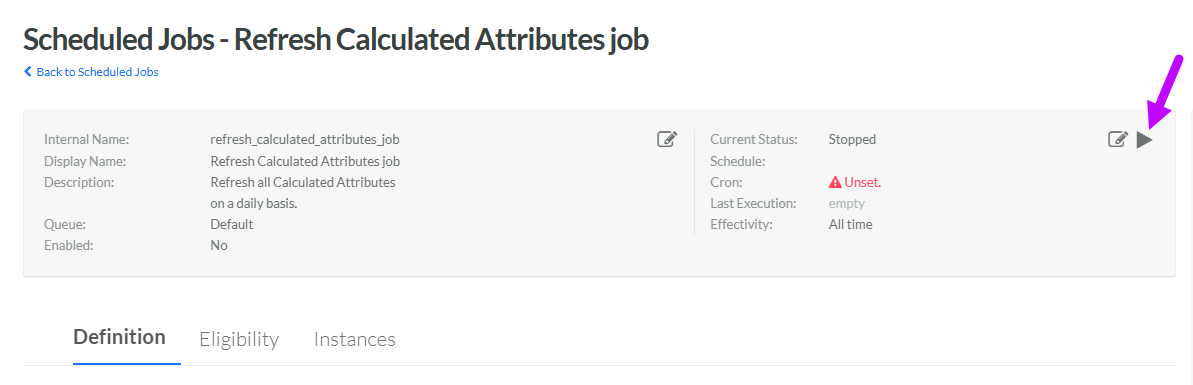
Search for and select the desired Scheduled Job (see Search for a Scheduled Job for more information on the available search options). The Scheduled Job Details screen is displayed, with the Definition tab selected by default.
-
In the top-right corner of the header area of the screen, click the Run icon.